


How to Factory Reset an iPhone: Every Method, Step by Step
A factory reset wipes your iPhone back to the way it came out of the box. No apps, no photos, no saved passwords, just a clean slate ready for new settings or a new owner.
There are usually a handful of reasons to factory reset your iPhone: selling or trading in the device, troubleshooting glitches or other issues, or getting locked out after one too many forgotten passcode attempts.
Whatever's brought you here, the good news is there's a method for your situation, whether your iPhone's working perfectly or won't respond at all.
Fair warning: a factory reset erases everything on your device, permanently. There's no undo once it starts. Before you start, jump down to our backup section first. A couple of minutes now will save you a world of stress later.
In this article, we’ll cover:
- Method #1: How to Factory Reset an iPhone in Settings
- Method #2: How to Factory Reset an iPhone Using a Computer
- Method #3: How to Factory Reset an iPhone Without a Passcode
- Method #4: How to Factory Reset a Locked or Disabled iPhone
- Next Steps: What Happens After Your Factory Reset?
- Frequently Asked Questions
Before You Reset, Follow These Two Steps
#1 - Back Up Your iPhone
It’s important not to skip this step. Once you factory reset your phone, everything will be gone unless it's backed up somewhere first.
For an iCloud backup:
- Go to Settings.
- Tap your name at the top.
- Select iCloud > iCloud Backup.
- Tap Back Up Now.
For a computer backup, connect your iPhone to a Mac or PC. Open Finder or iTunes, select your device, and choose Back Up Now.
Keep in mind some settings and health data can have separate backup rules, so it's worth double-checking to ensure those areas are transferred properly.
#2 - Turn Off ‘Find My Phone’
This is another essential step before you complete a factory reset. If you leave ‘Find My Phone’ switched on, then Activation Lock will keep the device tied to your Apple ID even after it's erased.
- Go to Settings
- Tap your name at the top.
- Pick Find My in the second section.
- Tap Find My iPhone and toggle it off.
With that sorted, now you're ready to reset.
Method #1: How to Factory Reset an iPhone in Settings
This is the easiest way to reset your iPhone, and it's the one Apple recommends if your device is working normally and you've still got your passcode.
- Open Settings and tap General.
- Tap Transfer or Reset iPhone, near the bottom of the menu.
- Select Erase All Content and Settings and tap Continue.
- Choose what happens to your eSIM. You'll be asked whether to keep or erase it. If you're keeping the phone in the family, keep it. If you're selling or trading in, erase it and give your provider a quick call to reactivate your plan on the new device.
- Enter your passcode and Apple ID password to confirm.
- Tap Erase iPhone to kick off the reset.
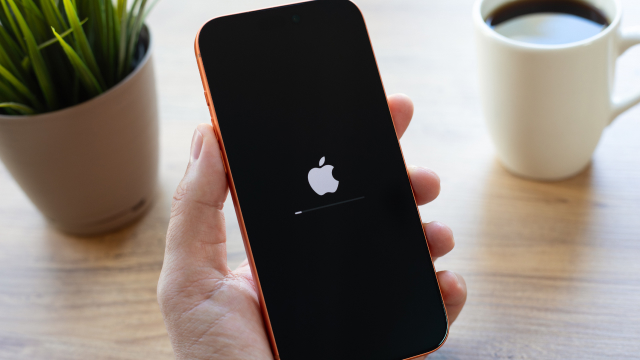
Your screen will go black, show the Apple logo, then restart on the "Hello" setup screen. This usually happens within 10–15 minutes, depending on your model.
Method #2: How to Factory Reset an iPhone Using a Computer
If your iPhone's frozen, won't respond to touch, or you're resetting a few devices at once for the shop, this method's your best bet as it doesn't rely on the phone itself to work.
- Connect your iPhone to your computer using a USB or USB-C cable.
- Open Finder on a Mac, or the Apple Devices app on Windows. You can also use iTunes if your PC doesn't have that app, or if your Mac's running Mojave or earlier.
- Select your iPhone once it appears in the sidebar or device list.
- Sign out of Find My first if it's still switched on (see above). You'll need to do this before you can restore your device.
- Click Restore iPhone, then confirm.
Your computer takes care of the rest, wiping the device and installing the latest iOS automatically. It's a solid backup option when the on-screen method just isn't possible.
Method #3: How to Factory Reset an iPhone Without a Passcode
Forgotten your passcode? Don’t stress. There are two reliable ways to reset your iPhone without one, which we’ll explain below:
Method #3A: Using the Computer
- Put your iPhone into Recovery Mode. The button combo varies slightly by model, but generally involves holding the button combination until you see the recovery screen.
- iPhone 8 and later — Quick press of Volume Up, quick press Volume Down, then press and hold Side button.
- iPhone 7 and 7 Plus – Press and hold Side button and Volume Down button together.
- iPhone 6s and earlier – Press and hold Home button and Side/Top button together.
- Connect to a computer and choose Restore when prompted in Finder or the Apple Devices app.
Method #3B: Using iCloud
- Login to iCloud.com and sign in with your Apple ID.
- Select Find My iPhone, choose your device, and click Erase.
Both methods wipe the phone completely and remove the old passcode. Worth noting: since Activation Lock ties the device to the original owner's Apple ID, this won't help unlock a stolen iPhone — you'd need the previous owner's Apple ID and password regardless, which is exactly the point.
Method #4: How to Factory Reset a Locked or Disabled iPhone
Seeing a "Disabled" message and a lockout timer ticking up? You’ve probably forgotten your passcode.
The good news: everything you need is already covered in Method #3 above. Recovery Mode and iCloud.com's remote erase both work exactly the same way, whether you've forgotten your passcode or your iPhone's locked itself out after too many failed attempts.
A couple of quick pointers for this specific scenario:
- Don't keep guessing the passcode. Each wrong attempt adds to the lockout timer, and enough failed tries can disable the phone permanently until it's erased.
- Head straight to Recovery Mode or iCloud.com (see Method #3) rather than waiting the timer out. It's faster and gets you back up and running sooner.
Next Steps: What Happens After Your Factory Reset?
Restoring From Backup
Once the reset finishes, your iPhone boots up on the "Hello" welcome screen, just like the day it left the box.
- Choose your language and region, then connect to Wi-Fi to continue.
- Decide how you want to set up the phone. Either restore from your iCloud or computer backup to restore everything, or tap Set Up as New iPhone for a clean slate.
Restoring gets you back to normal fastest, but starting fresh is great if you're after a real digital declutter.
What To Do Before Selling Your iPhone
Handing your iPhone on to someone new? A quick checklist keeps your data safe and saves the buyer a headache.
- Complete a full factory reset using any of the methods above.
- Remove your physical SIM card, or erase your eSIM if prompted during setup.
- Confirm you're signed out of iCloud and Find My before handing it over.
All sorted! Your iPhone's ready for its next owner.
Frequently Asked Questions
How long does a factory reset take?
Usually 10–15 minutes, though older models or larger amounts of stored data can push it closer to 20. Your iPhone will restart a couple of times during the process, so don't panic if the screen goes black for a bit.
Does factory reset remove the passcode?
Yes, once the reset's complete, the old passcode is gone and you'll set a new one during setup. This applies whether you reset through Settings, a computer, or remotely via iCloud.
Does factory reset delete photos permanently?
It does, unless they're backed up to iCloud or a computer first, so make sure you back up before you begin. Once the reset's underway there's no undo button, so it pays to double-check your backup is finished properly beforehand.
Can I factory reset without losing data?
Not on the device itself, but a proper backup beforehand means you can restore everything afterwards. Think of the backup as the safety net. The reset always wipes the phone clean, but it's the restore step that brings your data back.
Will factory reset remove a virus?
iPhones rarely get traditional viruses, but a reset does clear out dodgy configuration profiles or misbehaving apps. If something's been acting up — think odd pop-ups, battery draining fast, apps crashing — a reset is often the quickest way to rule out software gremlins.
Will a factory reset fix a slow iPhone?
Often, yes. A factory reset will clear clutter and background junk that builds up over time, giving your phone a fresh start. It's especially handy if you've had the same iPhone for a few years without ever properly clearing it out.